
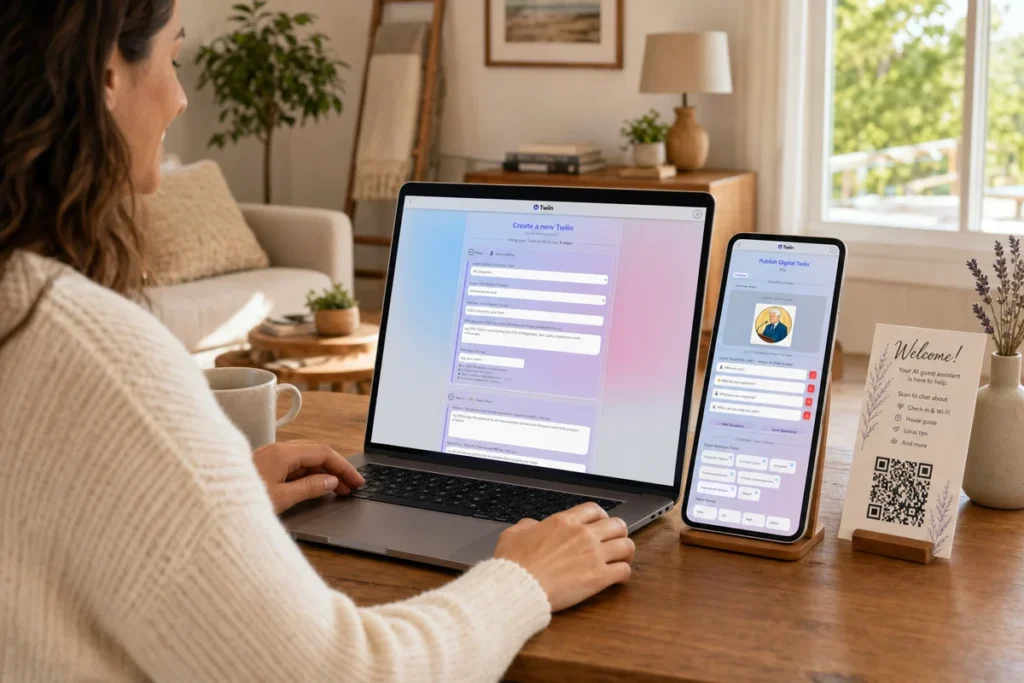
Creating your first Twiin is easier when you begin with one clear job and one real audience.
In this walkthrough, we will build a Twiin for a fictional Airbnb called Lakeview Cottage. Its job is to help guests before and during their stay with practical questions about arrival, parking, Wi-Fi, appliances, amenities, house rules, checkout, and nearby recommendations.
The same process works for a vacation rental, cabin, guest house, boutique hotel, serviced apartment, or property management company.
Before you start: gather the right information
A useful Twiin begins with reliable source material. Before opening the creation page, collect:
- Your welcome book or digital house manual
- Check-in and checkout instructions
- House rules
- Parking directions and a simple parking map
- Wi-Fi instructions
- Appliance and thermostat guides
- Trash, recycling, laundry, pool, hot tub, fireplace, or grill instructions
- Accessibility information
- Emergency and maintenance contacts
- Local restaurants, groceries, pharmacies, transportation, and attractions
- Seasonal notes, such as snow removal or storm procedures
Remove information that should not be available to every visitor. Do not upload active door codes, alarm codes, payment details, guest records, private owner information, or anything that could create a security or privacy risk.
Your Twiin can explain where a guest will receive a door code without storing the code itself.
Step 1: define your Twiin’s identity
The first section establishes who the Twiin is, what it represents, and who should use it.
Select a virtual job
Choose the category closest to hospitality, property support, customer service, or guest assistance.
The label matters less than the role you define in the next step. Select the closest available option and make the purpose specific.
Choose public or private access
For an Airbnb guest assistant reached through a welcome-card QR code, public access is usually the practical choice. Anyone with the link can open it, so the Twiin must contain only information that is safe to share with guests.
Use private access when the information is meant for a controlled internal audience. Regardless of the setting, never treat the Twiin as a place to store passwords, access codes, payment information, or confidential guest data.
Give your Twiin a name
Choose a short name that connects the assistant to the property.
Example:
Lakeview Cottage
If you manage several properties, use a consistent pattern such as:
Lakeview Cottage Guest Twiin
Describe who the Twiin represents
This description helps establish context and audience. You can adapt the following:
Lakeview Cottage is a two-bedroom short-term rental for couples, families, and small groups. This Twiin helps confirmed and prospective guests understand the property’s amenities, arrival process, house guidelines, equipment, checkout tasks, and nearby services. It communicates as a welcoming and practical digital host.
Create the URL slug
Keep the slug short, memorable, and property-specific.
Example:
lakeview-cottage
Use letters, numbers, and dashes. Avoid dates, booking numbers, or details that may change.
Step 2: define the Twiin’s role
This is where you tell the Twiin what it should accomplish and where its authority ends.
Purpose
Copy, paste, and customize this example:
Help Lakeview Cottage guests get accurate, concise answers about arrival, parking, Wi-Fi, amenities, appliances, thermostat operation, house rules, checkout, accessibility, local recommendations, and routine property questions. Use the supplied property information as the source of truth. Give step-by-step instructions when useful. If the answer is not in the supplied information, say so clearly and direct the guest to the host. For urgent property issues, advise the guest to contact the host using the official contact method in the welcome guide.
Restrictions
Boundaries protect the guest, the host, and the quality of the experience. Use a version of the following:
Do not reveal or guess door codes, lockbox codes, alarm codes, Wi-Fi passwords, reservation details, payment data, guest information, or private owner information. Do not approve refunds, discounts, late checkout, early check-in, extra guests, pets, events, policy exceptions, or maintenance spending. Do not provide legal, medical, or emergency advice. Do not guess about safety conditions or claim that a feature is available unless the property information confirms it. If there is immediate danger, fire, a medical emergency, suspected gas, or another urgent threat, tell the guest to leave the unsafe area and contact local emergency services, then notify the host.
This restriction text also gives the Twiin a graceful escalation path: answer normal questions, but bring in a person when authority or safety is involved.
Step 3: add intelligence
Upload the material the Twiin should know. The creation page supports PDF, text, and CSV files, and also lets you add intelligence directly as text.
Start with a small, clean knowledge set:
- Property overview and amenities
- Arrival and parking guide
- House rules
- Appliance and climate-control instructions
- Checkout checklist
- Local recommendations
- Contact and escalation guide
If your information lives on webpages, save the relevant pages as PDFs. If you have helpful instructional videos, add clean transcripts rather than expecting the Twiin to infer information from the video itself.
Make each source easy to understand
Use descriptive headings, short sections, and direct language. A document called Lakeview Cottage Thermostat Guide is easier to use than a folder of unlabeled screenshots.
Resolve contradictions before uploading. If one document says checkout is at 10:00 a.m. and another says 11:00 a.m., the Twiin cannot know which rule is current.
Suggested additional intelligence
You can paste this summary into the additional-intelligence field and customize it:
Lakeview Cottage guests value quick, practical answers. Lead with the direct answer, then provide short steps. Refer to the property as Lakeview Cottage. Use only the uploaded property information. If instructions differ by season or device, ask one clarifying question. When a request requires host approval or the information is missing, explain that the host needs to confirm it. Never invent an amenity, rule, fee, operating instruction, or local business detail.
Step 4: choose a personality
For a hospitality Twiin, a helpful personality feels welcoming without becoming chatty or vague.
Good choices include:
- Warm and Approachable
- Curious and Attentive
- Kind-hearted and Positive
- Confident and Authentic
Useful knowledge strengths include:
- Practical Knowledge
- Social Knowledge
- Emotional Knowledge
- Linguistic Knowledge
- Spatial Knowledge
- Cultural Knowledge
- Environmental Knowledge
Select only the traits that support the job. A guest assistant should be calm, clear, observant, and comfortable giving practical directions.
When the identity, role, knowledge, and personality are ready, select Create My Twiin.
Test before publishing
Do not publish after only one perfect question. Test the way a tired traveler might actually type.
Try questions such as:
- Where do I park?
- wifi?
- How do I turn the heat down?
- The coffee maker is not working. What should I check?
- Can we check out at noon instead?
- What do I need to do before leaving?
- Is the cabin wheelchair accessible?
- The smoke alarm is going off. What should I do?
- What is the front-door code?
- Can you refund the cleaning fee?
Check that the Twiin answers supported questions accurately, refuses to expose protected information, avoids granting exceptions, and directs urgent or unauthorized requests to the correct human contact.
When an answer is weak, improve the source information first. Clear knowledge usually produces clearer answers.
Publish your Airbnb Twiin
The publishing page lets you shape the guest-facing experience before making it available.
Add an avatar
Upload or generate an avatar that fits the property. A friendly illustrated house, a simple property image, or a welcoming host-style character can work well.
Avoid using a photo that suggests a real person is responding live unless that is genuinely how the service operates.
Add quick questions
Quick questions help a guest start immediately. Replace generic prompts with high-value property questions:
- 🏡 How do I check in?
- 📶 How do I connect to Wi-Fi?
- 🚗 Where should I park?
- 🌡️ How does the thermostat work?
- 🍽️ Where should we eat nearby?
- 🧹 What should I do before checkout?
Put the most common and time-sensitive questions first.
Choose the voice
Friendly Conversationalist is a strong starting tone for a vacation rental. Professional Advisor can suit premium properties or management companies. Test the available voice names and choose one that is easy to understand.
For the custom speech pattern, try:
Warm, concise, and welcoming. Answer the question in the first sentence. Use short numbered steps for instructions. Avoid slang, exaggerated enthusiasm, and unnecessary detail. If the answer is not supported by the property information, say that the host needs to confirm it.
Use Play Test to hear the result. Listen for clarity, speed, pronunciation, and whether the voice matches your guests and property.
Publish and scan the QR code
Select Publish when testing is complete. Open the published Twiin link on a phone that is not signed in to your account and verify the full guest experience.
Create a QR code that points to the published link, then place it where guests naturally need help:
- On the printed welcome card
- Near the entry information
- On the refrigerator
- Beside the thermostat
- Near the washer, hot tub, fireplace, grill, or other equipment
- Inside the digital welcome guide
Add a simple instruction such as Scan to ask about the house, Wi-Fi, appliances, checkout, and local tips.
Always test the printed QR code at its final size, in normal lighting, and from a comfortable scanning distance. Keep a short typed URL beneath it as a backup.
Keep your Twiin useful
A published Twiin is a living guest resource. Review it whenever you change:
- Check-in or checkout procedures
- Parking instructions
- Wi-Fi equipment
- Appliances or amenities
- House rules
- Host contact details
- Local recommendations
- Seasonal operations
Review guest questions and note where people still need to contact the host. Those gaps show you what to add or clarify.
Your first Twiin is ready
You have now created a focused digital guest assistant with a clear identity, reliable property knowledge, safe boundaries, a welcoming personality, useful quick questions, and an easy QR-code entry point.
Start with one property and the questions guests ask most often. Test carefully, publish, learn from real use, and improve the knowledge over time. That simple cycle is how your first Twiin becomes a dependable part of the guest experience.

